Image Metadata Viewer EXIF, location and AI labels
- No upload
- No account
- Reads C2PA
- Lossless clean-up
Loading the viewer
How to
How to check image metadata
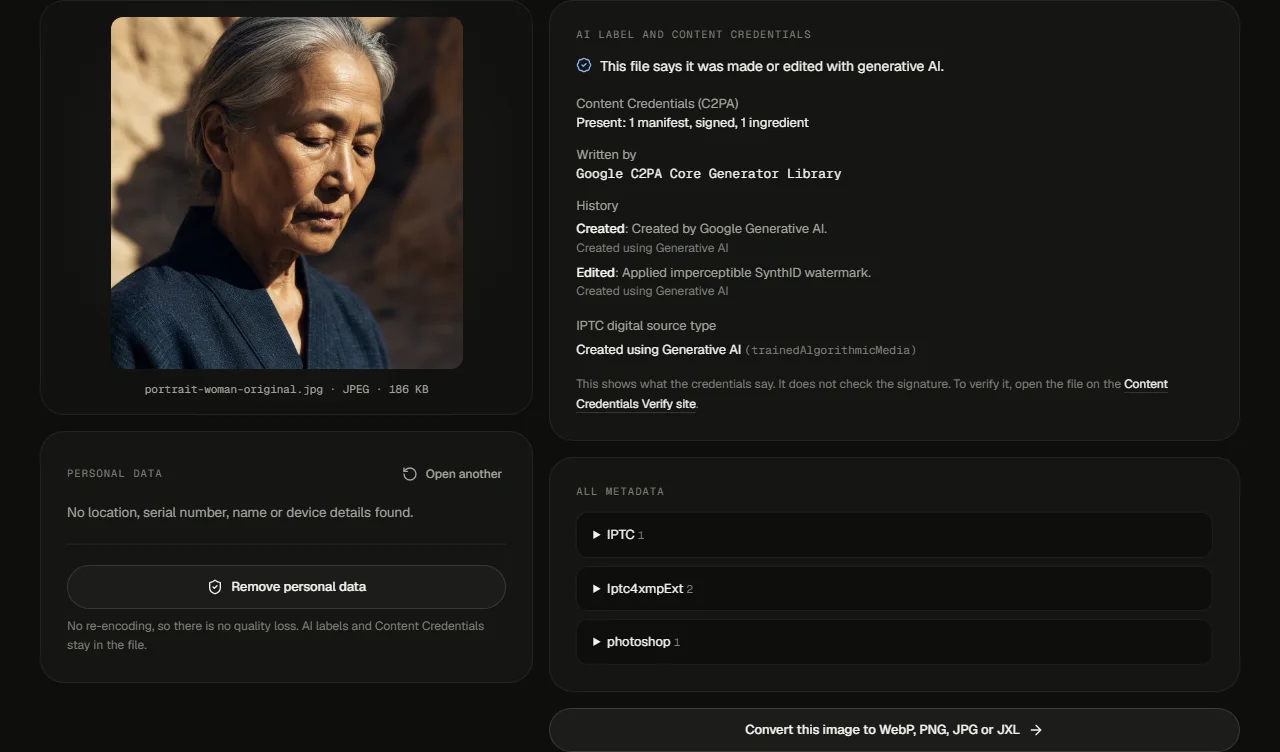
Four steps, all in the viewer above. The sample button opens this render from our studio, with its original metadata.

- 01
Drop the image on the viewer
JPEG, PNG, WebP, HEIC, AVIF and TIFF all open. No image at hand? The sample button opens one of our own studio renders with its original metadata.
- 02
Read the personal data panel
It lists what could identify you or your device: GPS location, serial numbers, names, the camera or phone model, the date and the software.
- 03
Check the AI label and Content Credentials
If the file carries Content Credentials or an IPTC source type, the viewer shows what they say, such as who made the image and whether a generative AI model was used.
- 04
Remove personal data if you share it
Press Remove personal data and download the clean copy. The pixels are not touched, and the AI label and Content Credentials stay in the file.
In the file
What's inside an image file
An image is more than pixels. Around the picture sit blocks of data that apps add as the file is made and edited:
- 01
EXIF. Written by cameras and phones: make and model, lens, exposure, the date and time, often a serial number, and the GPS position if location was on.
- 02
GPS. Latitude and longitude, sometimes altitude and direction. Precise enough to find a house. It travels with the file unless something removes it.
- 03
IPTC and XMP. Captions, keywords, the creator's name and copyright, plus editing history from apps like Photoshop or Lightroom. XMP is also where an AI source type label usually lives.
- 04
Colour profile (ICC). Tells screens and printers how to show the colours. Harmless, and worth keeping.
- 05
PNG text. Free-form text fields. Some local image generators write the whole prompt and settings here, so a PNG you share can carry your prompt with it.
- 06
Content Credentials. A signed C2PA record of where the file came from and how it was changed. More on this below.
C2PA
Content Credentials (C2PA) explained
C2PA is the Coalition for Content Provenance and Authenticity, a standards group whose steering members include Adobe, Google, Microsoft, OpenAI, Meta, Sony and the BBC. Its standard defines Content Credentials: a record stored inside the file that says where the file came from, which tool made it and what was done to it since.
The record is hashed and signed, so changes made after signing can be detected. An AI tool that supports it can state in the record that the image was generated, written as the IPTC digital source type trainedAlgorithmicMedia, which IPTC names "Created using Generative AI".
Our sample image is a real example. It came from our studio, and its credentials list two steps: "Created by Google Generative AI", then an invisible SynthID watermark applied. Open it in the viewer above to see the record yourself.
Two limits to know. This viewer reads what the credentials say but does not check the signature; for that, use the Content Credentials Verify site. And metadata is easy to lose: many apps and social sites remove it when you save or upload, so a file with no credentials tells you nothing about how it was made.
Privacy
Remove personal data before sharing
A photo straight from a phone can hold the exact spot where it was taken, the phone's model and serial number, and the date to the second. Post the original file on a forum or send it by email and all of that goes with it. Reference photos you feed into an AI tool carry the same data.
Press Remove personal data and the viewer writes a clean copy. It drops EXIF, GPS, IPTC, XMP, comments and PNG text fields. It keeps the image data byte for byte, the colour profile, the rotation flag that keeps phone photos upright, and every AI label: the Content Credentials and the IPTC source type stay in the file.
That last part is deliberate. Labels that say an image was made with AI help people trust what they see, and removing them is not what this tool is for. If the file has Content Credentials, a checker should show that it changed after signing, which is the honest result of an edit.
Need a smaller file or another format too? The free image converter saves PNG, WebP, JPG and JXL in the same private way.
Drop the image on the viewer at the top of this page. It reads EXIF, GPS, IPTC, XMP, the colour profile, PNG text and Content Credentials in a second or two, right in your browser, and lists anything personal at the top.
No. The file is read by your own browser and never leaves your device. That matters here more than anywhere: the metadata you are checking may hold your home location.
Only if the file says so. The viewer shows Content Credentials and the IPTC digital source type when they are present, for example "Created using Generative AI". It is not an AI detector: it does not look at the pixels. Many apps and sites strip metadata, so a file without a label can still be AI-made.
No. The clean copy is rewritten without re-encoding, so the image data is copied byte for byte. Only the metadata blocks change. It works for JPEG, PNG and WebP files.
No, on purpose. It removes location, serial numbers, names, dates and text fields, and it keeps the Content Credentials and the IPTC source type. The tool is for privacy, not for hiding how an image was made.
This viewer shows what the credentials state but does not check the signature. To verify the signature and see the full history, open the file on the Content Credentials Verify site at contentcredentials.org/verify.