Image Converter PNG, WebP, JPG and JXL
- No upload
- No account
- Batch
- JPEG XL
Loading the converter
How to
How to convert an image
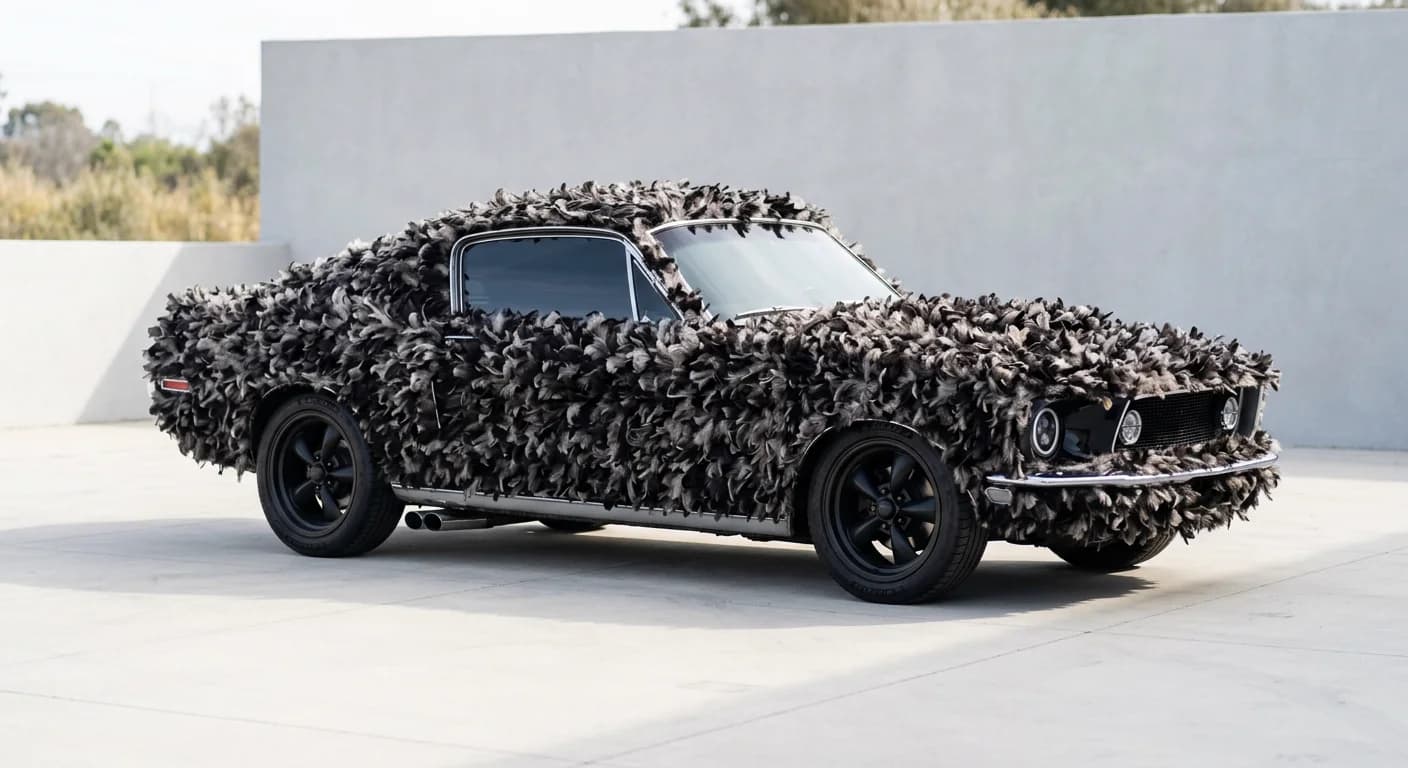
Four steps in the converter above. The sample button loads this WebP render from our studio, so you can try it without a file.
- 01
Add your images
Drop one or more PNG, JPG, WebP, JXL, AVIF, GIF or BMP files on the converter, or press Add images. The sample button loads one of our own WebP renders.
- 02
Pick the format
WebP for websites, PNG when every pixel must stay exact, JPG when something only takes JPG, JXL for the smallest files where it is supported.
- 03
Set quality and size
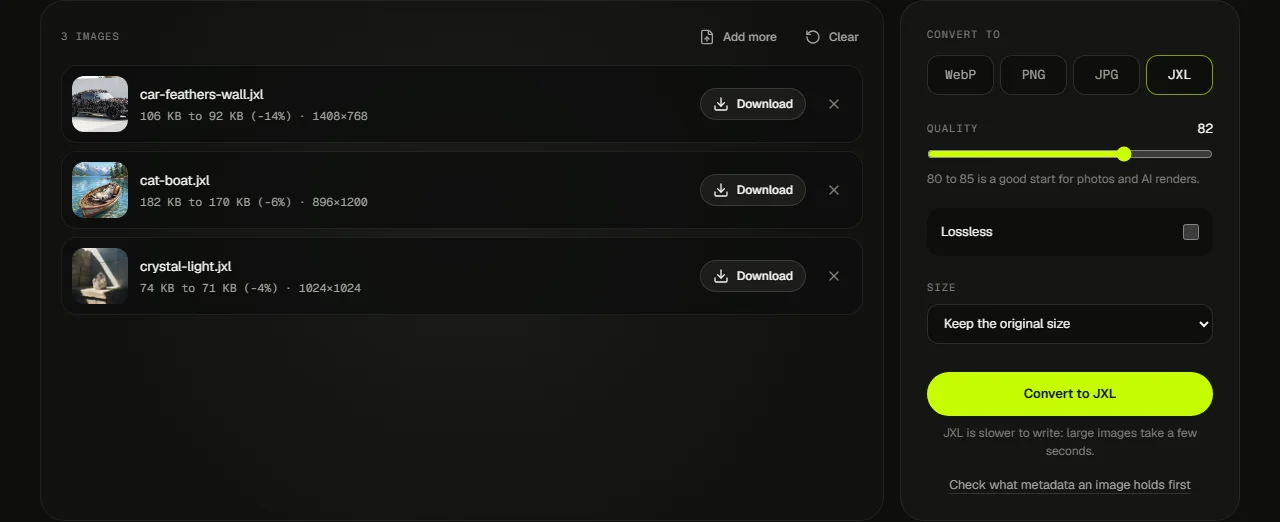
For WebP, JPG and JXL choose a quality; JXL also has a lossless switch. Shrink the longest side if the image is bigger than it will ever be shown.
- 04
Convert and download
Each file shows its old and new size, so you can see what you saved before you download it.
For the web
Convert AI images for the web
Image generators tend to hand you large PNG files, often bigger than any page will show them. That is fine for editing and a poor fit for a website, a shop listing or a portfolio, where every heavy image slows the page down.
The usual fix takes two settings. Save a WebP copy for the web at quality 80 to 85, and set the longest side to the largest size it will appear at, such as 1920 px for a full-width banner. Keep the original PNG as your master, so you can make a new copy later without losing anything.
Transparent cut-outs from background removal keep their transparency in WebP, PNG and JXL. Only JPG fills it in. If a render is too small for what you need, enlarge it with the image upscaler first, then convert.
Formats
Which format to choose
| Format | Best for | Transparency | Lossless | Opens in |
|---|---|---|---|---|
| WebP | Websites, shops, blog images | Yes | Not in this tool | Every current browser |
| PNG | Masters, logos, screenshots, edits | Yes | Always | Everywhere |
| JPG | Sites and apps that only take JPG | No (white background) | No | Everywhere |
| JXL | Smallest files, archives | Yes | Yes | Chrome, Firefox, Safari (partial); not Edge yet |
JPEG XL support is still spreading: current Chrome and Firefox open it, Safari has partial support since version 17, and Edge does not open it yet. For a website, keep a WebP or JPG fallback next to a JXL file.
Smaller files
Shrink files without losing quality
There are two kinds of smaller. Lossless means every pixel survives exactly: PNG always works this way, and JXL does when you turn on Lossless. Try lossless JXL on a big PNG master and compare the two sizes in the list.
Lossy means the encoder drops detail your eye is unlikely to miss. At quality 80 to 85, WebP and JXL copies of a render are often hard to tell from the original at normal viewing size, and much lighter. Go lower only for thumbnails, and look at the result before you publish it.
The biggest saving is often size, not format. A 4K render shown in a 1200 px column carries pixels nobody sees. Pick a longest side in the Size menu and the file shrinks with it.
Converting writes a fresh file, so old metadata is left behind. If you want to know what a file carries first, open it in the image metadata viewer.
Drop the PNG on the converter, pick WebP, leave quality around 80 to 85 and press Convert to WebP. Transparency is kept. The row shows the new file size next to the old one, and Download saves the .webp file.
Add the WebP file, pick PNG and convert. PNG is lossless, so the result looks exactly like the WebP you opened, transparency included. Expect a bigger file: PNG trades size for exactness.
Yes. Pick JXL, set a quality or turn on Lossless, and convert. The JPEG XL encoder runs in your browser and loads only when you choose JXL, so the first file takes a moment longer.
Pick JPG and convert. JPG cannot store transparency, so transparent areas become white. If the image has a cut-out subject, WebP or PNG keeps it clean.
No. Decoding and encoding happen in your browser, on your device. Nothing is sent to a server, so we never see your files.
No. The converter writes a new file from the pixels, so EXIF, location, AI labels and Content Credentials are not carried over. If you need the credentials, keep the original file. To see what a file holds first, use the image metadata viewer.