Kling Motion Control Copy any move onto any character.
Kling Motion Control takes the movement from a reference video and puts it on a character from a single image. You film a wave, a turn or a dance once, and the character in your picture performs it, with its own face, outfit and style. On TrendShift Labs, Kling 2.6 Motion Control runs in the Video to Video app in two versions, Standard and Pro.
Below: four Kling Motion Control examples with the character image each one started from, how the model works, every setting, the cost per second, and the habits that make a clean motion transfer.
- From 75 credits for 5 s
- Image + video in
- Up to 30 s of motion
- Standard and Pro
Examples
Kling Motion Control examples
Each card pairs the character image, in the corner, with the clip Kling Motion Control made from it. Four very different characters: a cartoon, an anime knight, a photo realistic person and a clay robot. The clips play as you scroll; tap one to pause it.
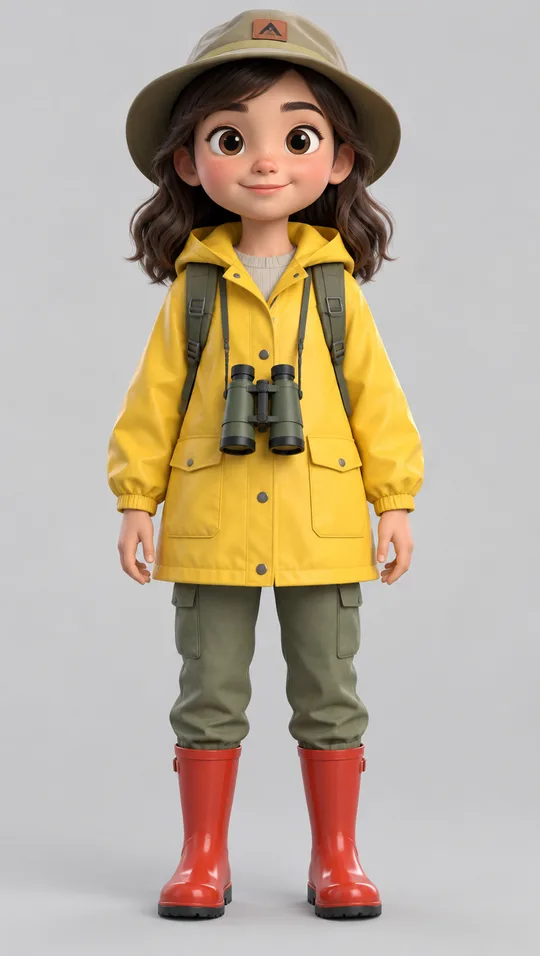
Cartoon explorer, wave
- Character image
- A 3D cartoon girl in a yellow raincoat, cargo trousers and red rain boots, binoculars around her neck.
- Motion
- Raises one hand, waves, and lowers it again.
The binoculars, backpack straps and hat stay put while the arm moves. The face keeps its look from start to end.
 Watch the framing
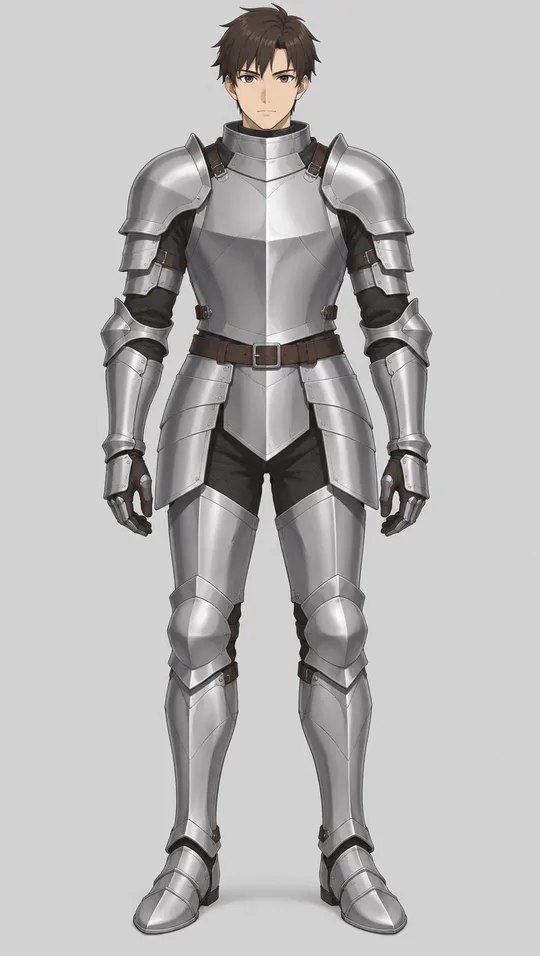
Anime knight, wave and push-in
- Character image
- An anime style knight in plain silver armor, standing straight.
- Motion
- Waves with one gloved hand while the framing pushes in to a chest-up close-up.
The armor plates hold their shape through the wave. The push-in is the part to watch: see where it struggles.
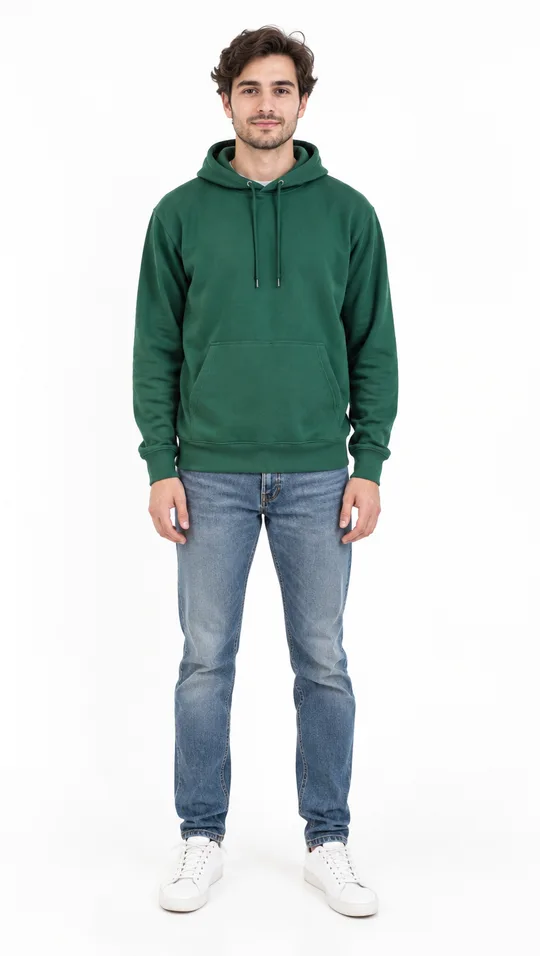
Man in a hoodie, full turn
- Character image
- A photo realistic man in a green hoodie, blue jeans and white sneakers, in a white studio.
- Motion
- Holds his arms out to the sides and turns one full circle.
The back of the hoodie and the jeans pockets were never in the character image. Kling Motion Control fills them in and keeps the colors matched.
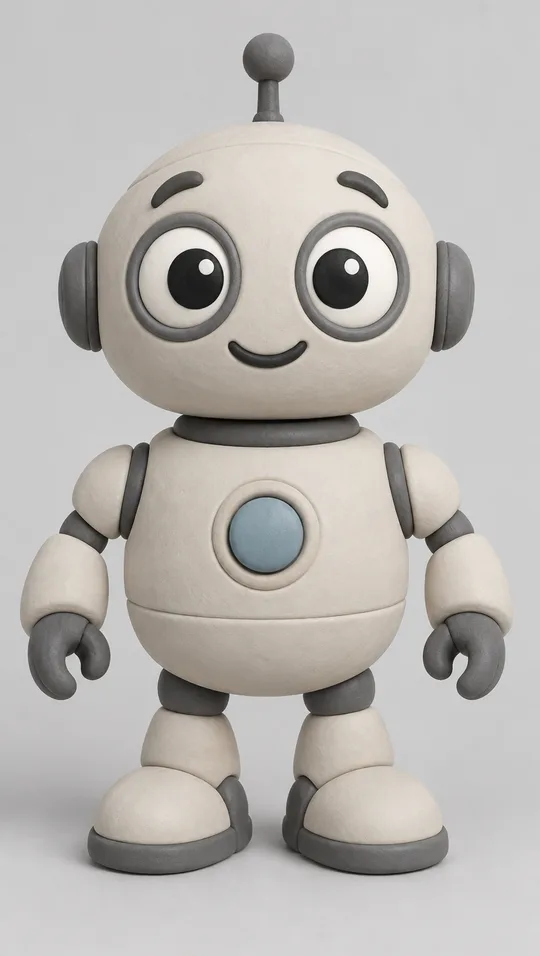
Clay robot, bob and smile
- Character image
- A round clay style robot with big eyes, an antenna and short arms and legs.
- Motion
- Bobs down and back up, and its eyes close into a smile.
A body with short legs and no neck still takes the motion. The expression change comes through as well as the movement.
How it works
How Kling Motion Control works
Most AI video models start from a prompt and guess the movement. Kling Motion Control works the other way round: the movement is given, by a real clip, and the model only has to decide how your character looks while doing it. That is why the timing of a wave or the rhythm of a dance comes out the way it was filmed instead of the way a model imagines it.
Think of it as motion transfer, or AI motion capture without a suit. The reference video is the skeleton, the character image is the skin. Everything a body does, from the arms and legs to the tilt of the head and the turn of the shoulders, comes from the video. Everything you see, the face, the clothes, the materials and the drawing style, comes from the image.
- 01
The reference video: the motion
The clip whose movement you want. Kling Motion Control reads the body in it, the arms, legs, head and hands, along with the timing of each move. It does not copy the person's face, clothes or background.
- 02
The character image: who performs it
One still of the character. Its face, outfit, colors and style carry through the whole clip. A photo, a 3D render, an illustration or a clay figure all work, as the examples above show.
- 03
The prompt: optional scene
A short line about the scene around the character. Leave it empty to keep the background of the character image. Use it to change the setting or the light, not the moves: the moves always come from the video.
How to
How to use Kling Motion Control
Six steps in the Video to Video app. Opening the app is free; generating spends credits from a plan on /pricing, and the cost shows before you press Generate. No character image yet? Make one in Text to Image first: a full body figure, standing straight, on a plain background.
- 01
Open Video to Video
The app is at /apps/video-to-video and opens without an account. Pick Kling Motion Control Standard or Kling Motion Control Pro from the model chip.
- 02
Add the character image
Drop the image into the Character slot, or send it from any image tile with Use as input. Use a full body picture if the reference shows a full body, and a half body one if it shows a half body.
- 03
Add the reference video
Drop the clip into the Reference video slot. Following the video, it can run up to 30 seconds; following the image, up to 10. The app measures the clip and tells you if it is too long.
- 04
Choose the character orientation
Follows video is the default and the right choice for dances and full body moves: the character turns and faces the way the person in the video does. Follows image keeps the character's own pose and facing and suits camera moves.
- 05
Add a prompt if you want a new scene
Optional. One sentence about the setting, such as a rooftop at sunset. Keep original sound is on by default, so the reference clip's audio carries over; switch it off for silent output.
- 06
Check the cost and press Generate
The cost depends on the length of the reference video and shows on the Generate button before you press it: 75 credits for a 5 second reference on Standard at the time of writing. The finished clip lands in your gallery as an MP4.
Settings
Kling Motion Control settings explained
Every option the Video to Video app offers for Kling Motion Control, with the value it uses when you leave it alone. Character orientation matters most: it decides whether the character follows the person in the video or keeps its own pose.
| Setting | Options | Default | What it does |
|---|---|---|---|
| Model | Standard, Pro | your pick | Standard costs less per second and covers everyday moves. Pro spends more on detail, for fast choreography, hands and close shots. |
| Character orientation | Follows video, Follows image | Follows video | Follows video: the character faces and turns the way the person in the reference does, up to 30 s. Follows image: the character keeps the pose of the still, up to 10 s, which suits camera movement. |
| Keep original sound | on, off | on | Carries the reference clip's audio into the result. Turn it off when the reference has noise, music you can't use, or someone talking. |
| Prompt | any text | empty | Describes the scene around the character. Optional; the motion always comes from the reference video. |
Cost
Kling Motion Control Standard vs Pro, and what it costs
Both versions take the same inputs and the same settings. The difference is how much detail each one spends per second: Pro holds fingers, faces and fast moves together better, and costs more for it.
Kling Motion Control is billed by the length of the reference video, so a 5 second test costs a sixth of a 30 second take. Our advice: test every new move on Standard with a short reference, then run the final version on Pro only if Standard shows soft hands or a face that drifts.
| Reference length | Standard | Pro |
|---|---|---|
| 5 seconds | 75 credits | 120 credits |
| 10 seconds | 150 credits | 240 credits |
| 30 seconds | 450 credits | 720 credits |
Credits at the time of writing. 30 seconds is the longest reference, following the video. The Generate button shows the exact cost of your clip.
Tips
Kling Motion Control tips for clean results
The reference video does most of the work, so most problems are fixed before you press Generate. Six habits that make the difference:
Match the framing
A full body reference needs a full body character image, and a half body reference a half body one. Mismatched framing is the most common reason a Kling Motion Control result looks stretched or cropped.
Keep the camera still
Film the reference on a tripod or prop the phone against something. When the reference camera moves, Kling Motion Control moves the framing with it.
Show the whole body, clearly
Head, shoulders, hands and feet in frame, one person, a plain wall behind, decent light. Loose clothing that hides the limbs makes the motion harder to read.
Start from a neutral pose
A character standing straight with arms relaxed, facing the camera, maps onto almost any move. A character already mid-jump fights the reference.
Use short references first
Test a move with a 5 second clip before you pay for 30. Cost scales with the length of the reference, not the result.
Keep proportions close
A long-legged dancer's steps on a character with short legs can look odd. Pick references whose body shape is near your character's, or accept a looser match.
Where it struggles
Where Kling Motion Control struggles
Look at the knight. The wave is right, and the armor keeps its plates through the whole move. But halfway through, the framing pushes in until the shot is a chest-up close-up, and the knight's boots and most of the armor leave the frame. Nothing in the character image asked for that.
With the character following the video, Kling Motion Control copies the camera of the reference along with the body. Any zoom, step closer or drift in the reference shows up in the result. If you want the whole character in frame from start to end, film the reference with a camera that does not move, at the distance you want the result framed.
Two other limits are worth knowing. Hands are the hardest part: fingers can soften or merge in fast moves, which is where Pro earns its price. And the character only knows the side you showed it. In a full turn, the back is invented, as with the man in the hoodie, and an invented back will not always match what you had in mind.
Ideas
What you can make with Kling Motion Control
Anything where you can act the move yourself but don't want to be the one on screen.
Dance and trend videos
Film the trend once yourself, then put the dance on a mascot, an avatar or a stylised version of you, without learning to animate.
Brand mascots and characters
Give a flat mascot or a product character real gestures: a wave for a welcome screen, a thumbs up for a sign-off, a short dance for a launch.
Game and story pre-visualisation
Act out a scene in the living room and see it played by the character you designed, before anyone builds a rig.
Explainers and presenters
Record yourself presenting with natural hand gestures, then let an illustrated host deliver the same take.
FAQ
Kling Motion Control, asked and answered.
Cost, length limits, Standard vs Pro and what works as a reference. Anything else? Ask us.
Kling Motion Control is a video model from Kling (Kuaishou) that copies the movement in a reference video onto a character from a still image. The video supplies the motion and its timing; the image decides who performs it. On TrendShift Labs it runs in the Video to Video app, as Kling Motion Control Standard and Kling Motion Control Pro.
It is billed per second of the reference video. At the time of writing a 5 second reference costs 75 credits on Standard and 120 on Pro, and a 10 second one 150 or 240. The Generate button always shows the exact cost before you press it.
Up to 30 seconds when the character follows the video, which is the default, and up to 10 seconds when it follows the image. The app tells you before you generate if a clip is too long for the orientation you picked.
Start with Standard. It costs less per second and handles waves, walks, turns and simple dances well. Move to Pro for fast choreography, hands that touch the body or each other, and close shots where small errors show. Run the same reference on both if you are unsure, and keep whichever reads better.
Yes by default. Keep original sound is on, so the output carries the audio of the reference clip. Switch it off when the reference has background noise or someone else talking.
Yes. The character can be a photo, a 3D render, an illustration or a clay style figure, as the examples on this page show. It works best when the character has a body that can make the moves: arms for a wave, legs for a step. Very different proportions, such as a character with no arms, give the model less to map the motion onto.
Use footage you shot yourself or have the rights to. Filming the move on your phone works well: hold it still, keep the whole body in frame, and stand against a plain wall. A clip made with text to video also works if the motion in it is clean.
No. The prompt is optional. Leave it empty and the background and lighting come from the character image. Add a short line when you want a different scene around the character, for example a city street at night.
About this page
Kling 2.6 Motion Control, Standard and Pro, in the Video to Video app.
Kling is a trademark of Kuaishou. This page is not affiliated with or endorsed by Kuaishou. Prices are the catalog prices at the time of writing.
- Published
- Kling version
- 2.6 Motion Control
Try it with your own move
Put your move on any character with Kling Motion Control.
Open Video to Video, add a character image and a reference clip, and the Generate button shows the cost (75 credits for 5 seconds on Standard at the time of writing) before you press it.